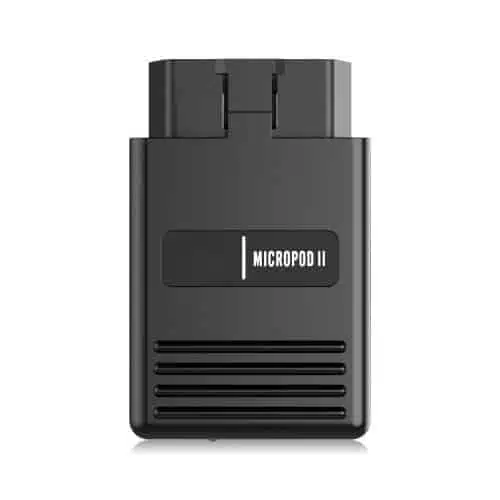
Electronic Control Units (ECUs) are responsible for controlling various systems within modern vehicles, including the engine, transmission, and brakes. Over time, software updates may be released to improve the performance or efficiency of these systems. With the wiTECH Micropod II, mechanics and dealerships can perform ECU reprogramming quickly and easily.
Here is a step-by-step guide to reprogramming a vehicle’s ECU with the wiTECH Micropod II:
- Obtain a TechAuthority Subscription: To access the necessary software for ECU reprogramming, you will need a TechAuthority subscription. This can be purchased through the TechAuthority website.
- Connect the Micropod II to a Laptop: Connect the Micropod II to a laptop using the provided USB cable or optional wireless access point. Ensure that the laptop is running the latest version of the wiTECH software.
- Launch the wiTECH Software: Once the Micropod II is connected to the laptop, launch the wiTECH software. You will be prompted to enter your TechAuthority username and password.
- Select the ECU to Reprogram: From the main menu, select the ECU that you wish to reprogram. The software will display any available updates.
- Follow the On-Screen Instructions: The software will guide you through the process of reprogramming the ECU. Follow the on-screen instructions carefully, and ensure that the vehicle’s battery is fully charged and the ignition is in the “on” position.
- Troubleshoot Any Issues: If any errors or issues arise during the reprogramming process, the software will provide guidance on how to resolve them. Check for any diagnostic trouble codes (DTCs) and follow the recommended troubleshooting steps.
By following these steps, mechanics and dealerships can perform ECU reprogramming quickly and easily with the wiTECH Micropod II. It is important to note that ECU reprogramming should only be performed by trained professionals with the necessary tools and expertise.
Read also: Toyota TIS Account: Programming a Blank ECU
WiTECH programming refers to the process of configuring and flashing software updates to Chrysler, Dodge, Jeep, and other vehicles using the WiTECH system and Micropod hardware for accurate diagnostics and repairs.
Setting up your Micropod involves connecting it to your laptop via USB, installing the WiTECH diagnostic software, and ensuring your device drivers and software are updated. Step-by-step instructions can be found in our guide.
Yes, the WiTECH system supports firmware updates along with diagnostic and repair capabilities for Chrysler vehicles. Ensure your subscription is active and follow the manufacturer guidelines for flashing updates.
Yes, a valid WiTECH subscription enables access to FCA vehicle databases, diagnostic functions, and programming features. Annual or monthly subscriptions are available for purchase.
You’ll need a Micropod hardware device, a PC with the WiTECH diagnostic software installed, and valid WiTECH subscription access. Additional FCA tools may be required depending on your programming needs.