
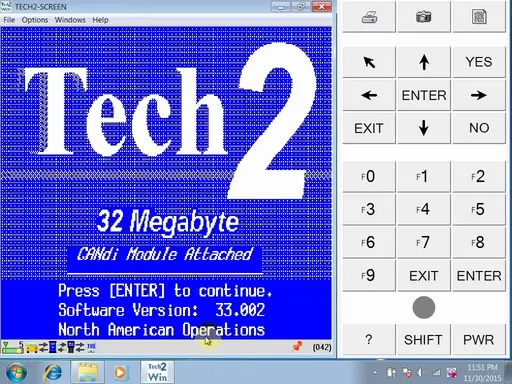
Tech2Win and GDS2: The Ultimate GM Diagnostic Software
Tech2Win and GDS2 for GM diagnostics on a Windows laptop. Compare their roles, vehicle-era fit, GM MDI 2 support, setup checks, and related GM resources.

Description
Updated: September 18, 2026
Tech2Win and GDS2 cover two important GM diagnostic workflows for technicians who work from a Windows laptop. Tech2Win brings the familiar Tech 2 diagnostic environment to a PC, while GDS2 is used for newer GM diagnostic platforms.
The key is choosing the software that matches the vehicle generation and using a compatible communication interface. For more GM tools and software, visit the GM diagnostics category.
Tech2Win: GM Tech 2 Software on a Windows Laptop
Tech2Win is a PC-based Tech 2 environment for technicians who want to use the familiar Tech 2 workflow from a Windows laptop.
Depending on the vehicle and software build, typical diagnostic work can include:
reading and clearing diagnostic trouble codes;
viewing live vehicle data;
running supported active or functional tests;
reviewing module and configuration information;
performing vehicle-specific service and diagnostic procedures.
Tech2Win is mainly associated with older GM vehicles from the Tech 2 era, while GDS2 is intended for newer GM platforms. Because transition years can overlap, always verify the exact vehicle before deciding which software to use.
GDS2: Diagnostics for Newer GM Platforms
GDS2 is the newer GM diagnostic environment used with later vehicle platforms. Depending on the vehicle and software environment, supported workflows can include:
vehicle-wide diagnostic scans;
diagnostic trouble code and module information;
live data and data recording;
supported bidirectional or functional tests;
vehicle and module identification;
guided diagnostic procedures where available.
GDS2 diagnostic software
Tech2Win vs GDS2: Which Software Do You Need?
Topic | Tech2Win | GDS2 |
|---|---|---|
Main role | PC-based Tech 2 diagnostic environment | Newer GM diagnostic environment |
Typical vehicle range | Older GM vehicles from the Tech 2 era | Newer GM vehicle platforms |
Windows laptop use | Yes | Yes |
Primary interface option | GM MDI 2 | GM MDI 2 |
Transition-year vehicles | Verify the exact vehicle | Verify the exact vehicle |
For a broader overview of the GM software ecosystem, see the GM SPS2, GDS2 & Tech2Win Guide.
GM MDI 2 and Interface Compatibility
GM MDI 2 (EL-52100-AM) is the primary interface option for this Tech2Win/GDS2 workflow. See the GM MDI 2 product page for the current hardware offering.
For other interfaces, compatibility should be verified before use:
Original GM MDI: confirm the exact unit, firmware, and software build;
Third-party J2534 interfaces: do not assume that J2534 support automatically means full Tech2Win or GDS2 compatibility;
Other VCIs: confirm support for the exact software and vehicle combination before relying on the interface in a workshop job.
SPS programming compatibility and Tech2Win/GDS2 diagnostic compatibility are not the same thing.
Tech2Win — Engine Control Module screen
Tech2Win / GDS2 Download and Setup Checklist
1. Identify the Vehicle and Diagnostic Goal
Note the make, model, model year, and system you need to diagnose. This helps determine whether Tech2Win or GDS2 is the better starting point.
2. Confirm the Interface
If you are using GM MDI 2, install the appropriate drivers and confirm that Windows recognizes the interface before opening the diagnostic software.
If you are using another interface, verify compatibility with the exact software and vehicle before beginning the job.
3. Prepare the Windows Laptop
Exact computer requirements can vary by software build. Before installation, check:
that the Windows environment is suitable for the software build;
that enough free storage is available;
that the required USB or network hardware for the VCI is working correctly;
that another diagnostic application is not already occupying the same communication interface.
If you need a dedicated workshop computer, see the rugged laptops category.
4. Verify Communication Before Diagnosing the Vehicle
After installation, first confirm that:
the software launches normally;
the interface is recognized;
the vehicle can be identified or communication can be established;
the expected modules are visible before moving into deeper diagnostic procedures.
Where Tech2Win and GDS2 Fit in the GM Workflow
Tech2Win and GDS2 are diagnostic applications and should not be treated as substitutes for every other GM service or programming function.
For online programming and GM Techline workflows, see the GM Techline Connect (SPS2 + GDS2) subscription.
If you need physical diagnostic hardware rather than laptop software, browse the GM diagnostics category.
Common Setup Problems
Tech2Win Opens but Does Not Communicate With the Vehicle
Start with the VCI connection. Make sure Windows recognizes the interface, the correct drivers are installed, and no other diagnostic program is using the communication device at the same time.
Also verify the vehicle connection and power state before treating the issue as a Tech2Win software problem.
GDS2 Recognizes the Interface but Not the Expected Vehicle Modules
Check the vehicle, communication method, and software/build compatibility. A successful connection to the VCI does not automatically mean that every vehicle or every control module is supported by the current setup.
A J2534 Device Works With SPS but Not With Tech2Win or GDS2
That can happen. Compatibility with SPS does not prove compatibility with Tech2Win or GDS2. Confirm the exact interface, firmware, driver, and diagnostic-software combination.
Which Software Should I Use for an Older GM Vehicle?
Older GM vehicles from the Tech 2 era commonly lead to Tech2Win, while newer GM platforms use GDS2. Because some model years overlap, verify the exact vehicle before selecting the software.
Tech2Win and GDS2 FAQ
What is Tech2Win?
Tech2Win is a Windows-based Tech 2 environment used for GM diagnostic workflows on supported vehicles.
What is GDS2?
GDS2 is the newer GM diagnostic environment used with later GM vehicle platforms.
Can I Use Tech2Win or GDS2 With GM MDI 2?
GM MDI 2 is the primary interface option for this workflow. Make sure the interface drivers and software environment are correctly configured before connecting to the vehicle.
Does Every J2534 Interface Work With Tech2Win and GDS2?
No. Compatibility should be confirmed for the exact interface, firmware, driver, and software version you intend to use.
Is Tech2Win the Same as SPS2?
No. Tech2Win is part of the Tech 2 diagnostic workflow, while SPS2 belongs to the GM programming ecosystem. For a broader comparison, see the GM SPS2, GDS2 & Tech2Win Guide.
Where Can I Get GM MDI 2 Hardware?
See the GM MDI 2 product page.
GDS2 diagnostic software screen